
Week, calendar and notes on your items
The same plan, seen the way that helps you most, with the reasons behind the numbers saved next to them.
- 1
Switch the view
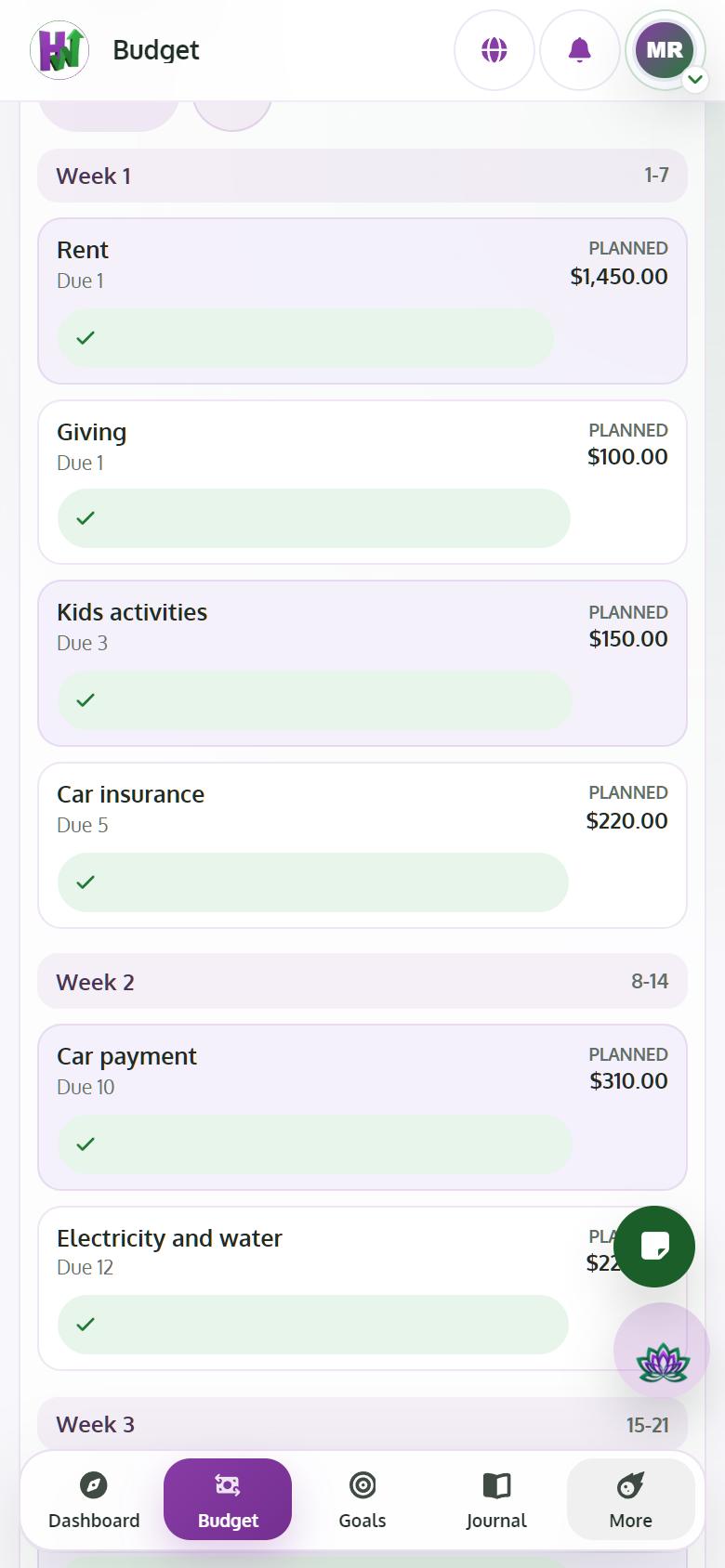
At the top of the Budget choose Month, Week, Timeline or Calendar. Week shows what goes out each week and how much is left. History is Premium.
- 2
Write a note on an item
Open an item and use Note for the context: why it is higher this month, what you want to cut. Your AI Coach reads these notes too.
- 3
Print it or add it to Google Calendar
Open Budget actions for Print / save PDF, Progress report and Google Calendar sync.