
Start next month
Planning next month before it starts is what keeps you ahead of your money instead of behind it.
- 1
Tap Start next month
In the Budget, tap Start with next month's name. On the free plan it appears in the last 5 days of the month; with Premium you can plan any month.
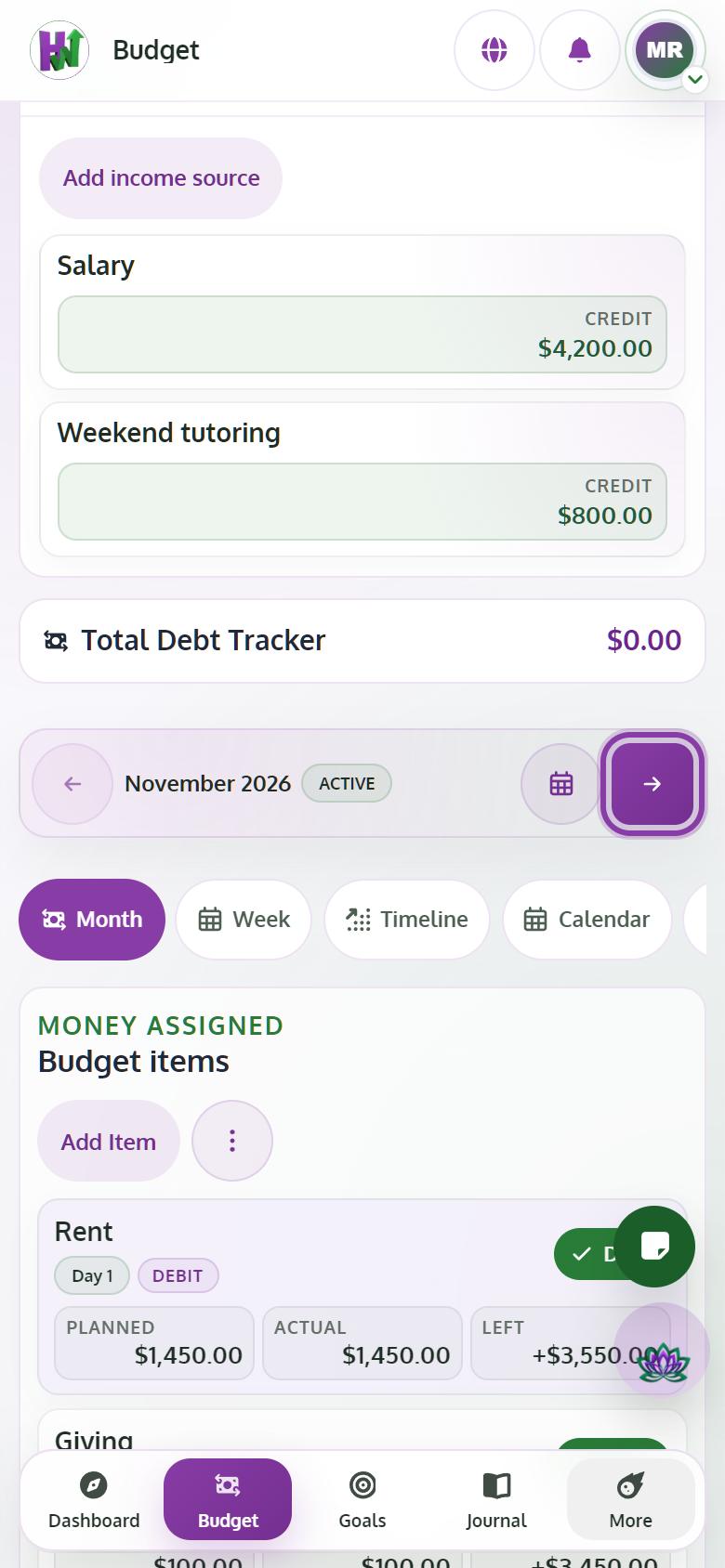
- 2
Choose how to start
Pick Copy all items (Premium), Recurring items only, or Start with an empty plan.
- 3
Adjust and plan to zero
Update the amounts that change, add anything new, and keep going until every dollar has a job.
- 4
Move between months
Use Pick month to open another month you have planned.